
Waitlist
Take a number
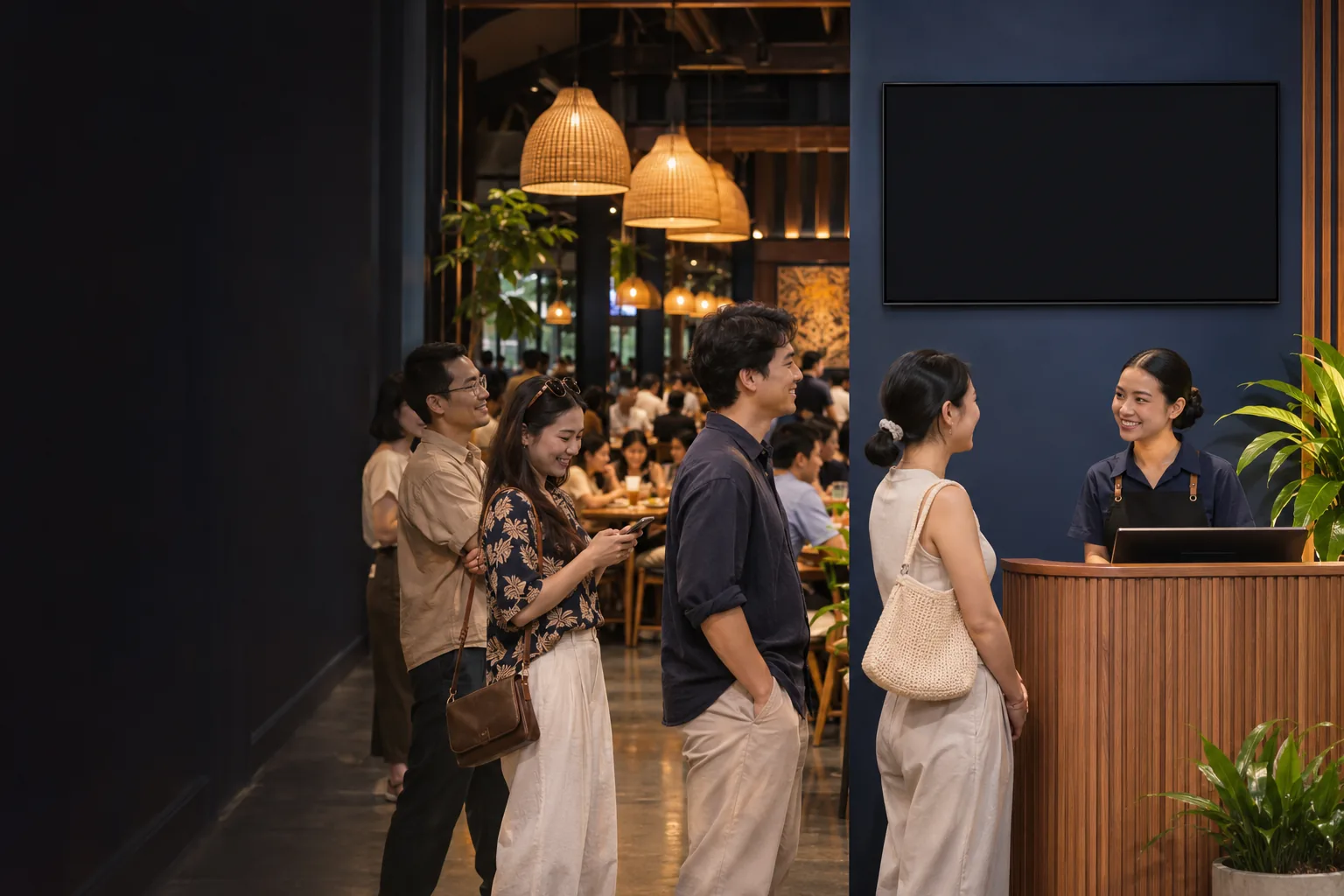
Give guests a place in line when the dining room is full.
Guests take a number by party size at the kiosk or the host stand. When a table opens, call from POS and notify guests through the CDS display, voice announcements, or both.
Core Features
The kiosk, POS, and guest display share the same waitlist from ticket to table.
Waitlist Flow
Four steps from taking a number to getting seated.
Guests watch the display while they wait. The host calls parties as suitable tables open and updates the queue after seating.
Try it from ticket to table
Choose a party size, take a number, and call it from POS to see the guest display update.
Queue kiosk
Host POS
- A12 Party of 4 Waiting
- B06 Party of 2 Waiting
- C03 Party of 6 Waiting
CDS display
Waiting
- B06
- C03
- B07
- A12
Please be seated
- A12
- B08
- C05
The number pops up when called and stays on the seating list after the pop-up closes.
Choose your party size and take a number at the kiosk.
Show the waitlist alongside store promotions
Choose a full or split screen based on how guests view it in the waiting area.
Waiting
- B06
- C03
- B07
Please be seated
- A12
- B08
- C05
Full-screen waitlist
Separate waiting and seating lists leave room for a large pop-up when a number is called.
Waiting
- B06
- C03
- B07
Please be seated
- A12
- B08
- C05

Waitlist on one side, ads on the other
Keep queue information on half the screen and use the other half for a new dish, set meal, or promotion.
Business Value
Guests take their own tickets, hosts call as tables open, and the CDS keeps the queue visible during a rush.
Fewer manual check-ins
Less time from table ready to seating
Fewer waitlist status questions
Illustrative estimates. Results depend on guest traffic, device setup, and the seating process.
Waitlist FAQs
Ticketing devices, queues by table type, and the guest display.
Staff can issue tickets directly from the POS. Add a dedicated kiosk if you want guests to take their own numbers.