
Self-Service Kiosk for
Faster Ordering
Let guests browse, order, pay, and receive tickets on their own.
Lucky POS Kiosk reduces counter pressure while keeping every self-service order connected to your restaurant workflow.
Core Features
Built for self-service ordering at peak hours
Self-Service Ordering Steps
Five simple steps from menu browsing to pickup ticket
Guests can finish the full order on the kiosk while POS, payment, and kitchen teams stay connected behind the scenes.
Kiosk Models & Setup
Choose the device format that fits your store flow
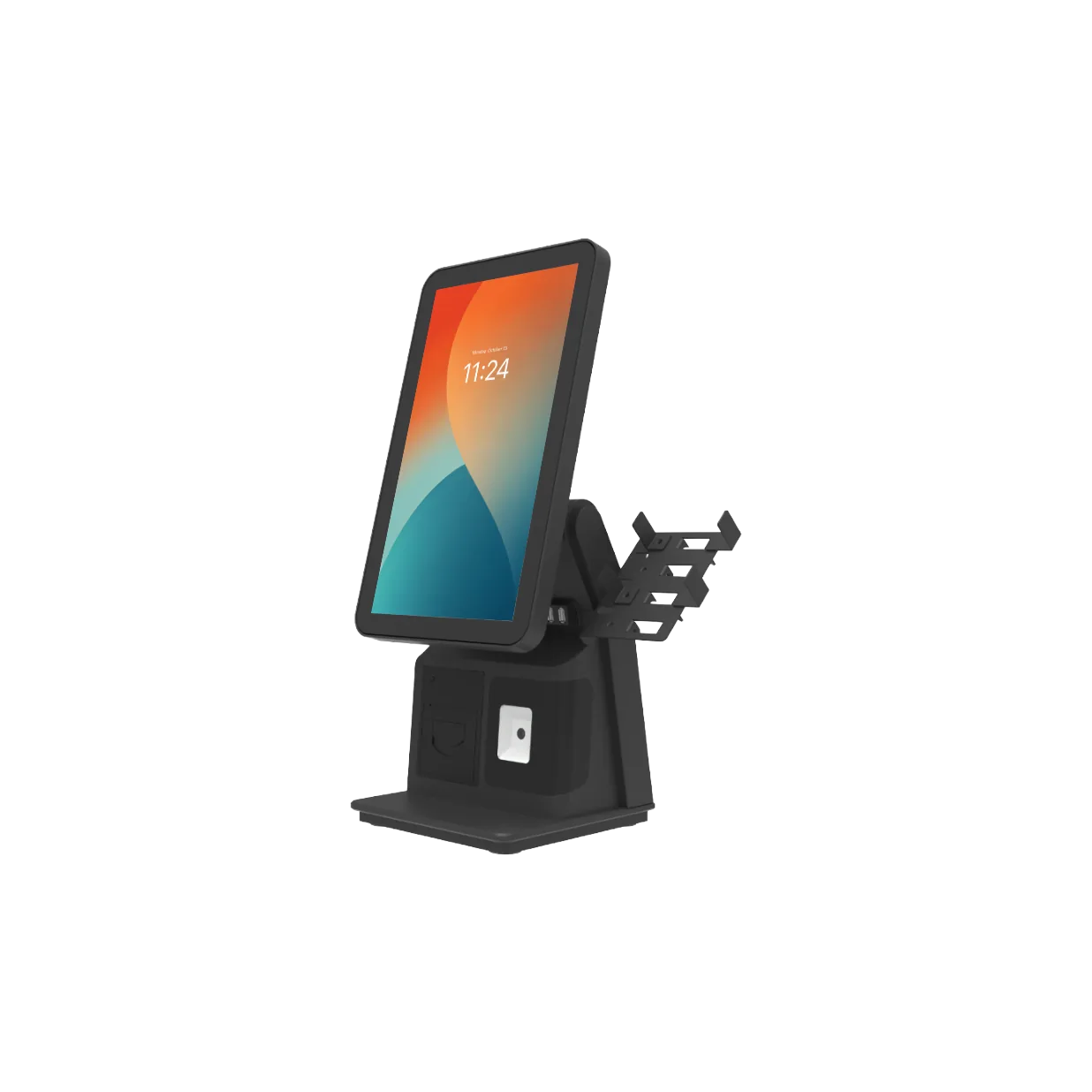
15.6" Compact Countertop
A compact self-ordering setup for limited counter space, beverage stores, and pickup areas.
- Small counter
- Pickup zone
- Beverage shops
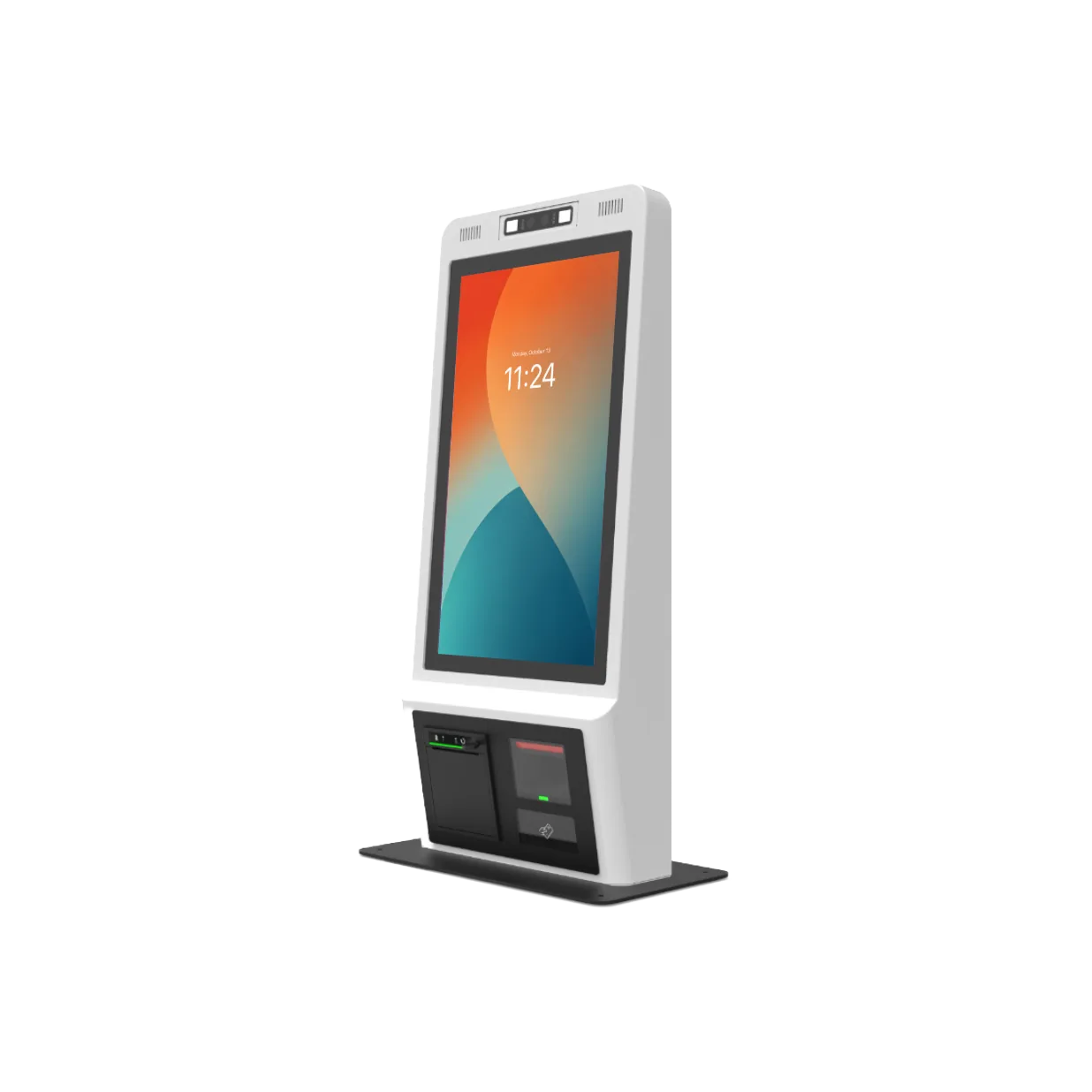
21.5" Standard Portrait
A balanced portrait screen for entrances, ordering lanes, and most quick-service restaurants.
- Main entrance
- Fast food
- Most stores
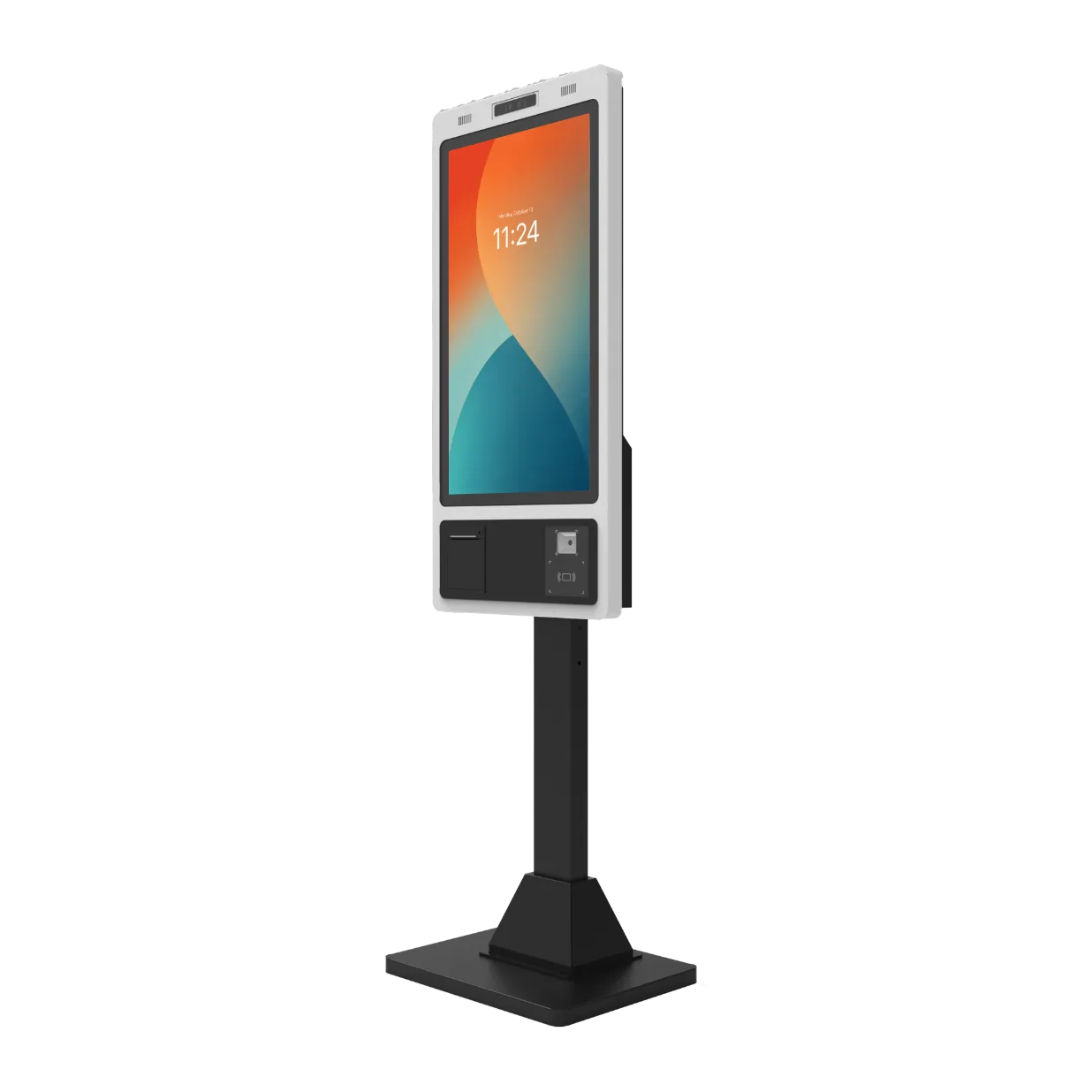
32" Large Floor-Standing
A high-visibility floor-standing kiosk for busy lobbies, queues, and high-traffic ordering zones.
- High traffic
- Lobby ordering
- Brand display
Where It Fits
Self-service ordering for different store formats
Fast Food
Guests place orders before reaching the counter, reducing pressure during rush hours.
Fast Food
Guests place orders before reaching the counter, reducing pressure during rush hours.
- Shorter queues
- Pickup numbers
- Fast checkout
Beverage Shops
Visual menus, toppings, and combos help guests build orders clearly.
- Add-ons
- Combos
- Member offers
Restaurant Lobbies
Multiple kiosks can take orders at the same time and keep kitchen queues organized.
- Multi-device
- Kitchen sync
- Order status
Business Value
Visible gains for faster self-service ordering
Shorter ordering time
Higher table turnover
Lower labor cost
Peak queue reduction
We Have the Answers
Common questions about Kiosk setup, payments, and daily operation
Yes. Kiosk orders can enter the same restaurant order flow and sync with supported POS, KDS, and pickup workflows.